
Using the Have I Been Pwned CLI, Part 1: From a breach lookup to a weekly report

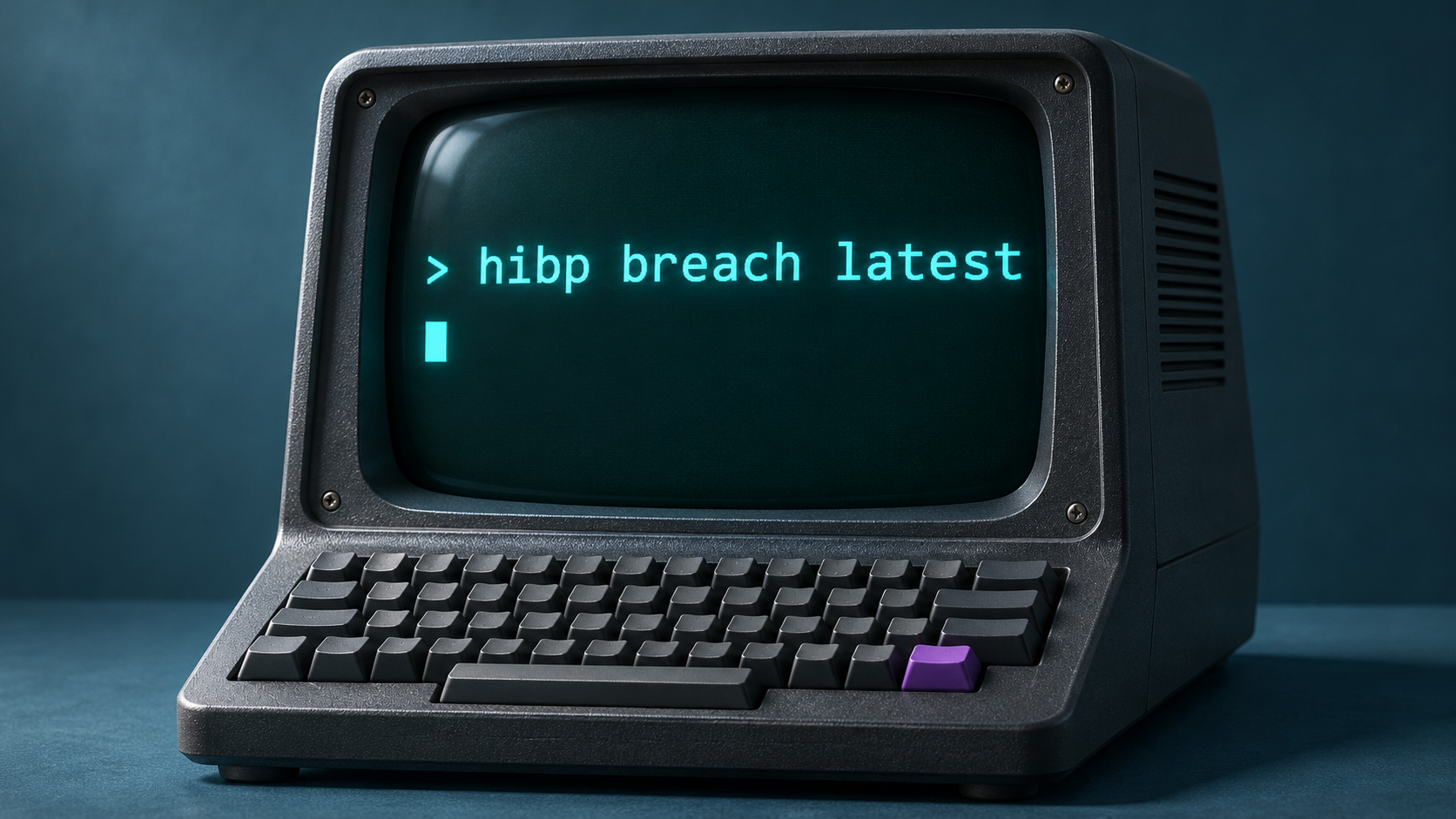
What data did the Adobe breach expose? You can look it up on Have I Been Pwned and find the answer in a few seconds. Now suppose you want those same data classes in a PowerShell script. Suddenly you're looking up the API route, building an HTTP request and figuring out what to do if it fails. All that for four strings!
That's the gap we wanted to close with the Have I Been Pwned CLI. We already have the API. We wanted you to be able to use it from the terminal, get an answer you can read, and keep the command when that one-off question turns into a regular job.
This is the first of three posts about the CLI. Let's start on the side of the keyboard where you're using it. You can follow the first two examples without a Have I Been Pwned (HIBP) account or an API key.
One breach, two ways to read it
With the .NET 10 SDK or later installed, grab the preview from NuGet and ask for the Adobe breach. The last argument gives you a report you can read right in the terminal.
dotnet tool install --global HaveIBeenPwned.Cli --prerelease
hibp breach get Adobe --markdown
Here's the exposed-data section of the Markdown report.
### Exposed data

- Email addresses
- Password hints
- Passwords
- Usernames
Say your script needs just those four values. PowerShell can pull them straight out of the JSON.
(hibp breach get Adobe | ConvertFrom-Json).DataClasses
Email addresses
Password hints
Passwords
Usernames
The CLI returns JSON by default, so PowerShell sees an array of four strings. That's handy if you're adding a column to a report or looking for every breach in a list that exposed password hints. The data goes to stdout. Progress and errors go to stderr, so a retry message won't turn up halfway through the JSON.
Once you've used hibp breach get Adobe, you know how to find your way around the other commands. Type hibp breach --help to see what else you can do with the catalogue, or hibp password check --help for the options on one particular command. The first word tells you what you're working with and the second tells you what to do with it.
Has this password turned up before?
For a password you want to check yourself, run hibp password check. The prompt hides what you type. The CLI calculates a SHA-1 hash locally and sends the first five characters of that hash to Pwned Passwords. The service returns matching hash suffixes and their counts. Your machine does the final comparison, so the password and its full hash stay on your machine.
Let's see what a script gets back. For this example we can pipe the literal word “password” into the CLI and ask PowerShell for the process exit code.
'password' | hibp password check --stdin --fail-if-found
$LASTEXITCODE
The first line below comes from the CLI. The second is PowerShell showing us how the process exited.
{"Found":true,"Count":52373976}
8
That password has appeared over 52 million times in the corpus. The count can change, but the contract a script cares about is simple. With --fail-if-found, a match returns 8, an empty result returns 0, and a network failure returns 6. If you're testing a password screening integration, that last distinction matters. A service you couldn't reach hasn't given your test password a clean bill of health.
An admin's view of a verified domain
Suppose you look after a company domain and someone on the help desk asks which accounts need follow-up. The public catalogue can tell you about Adobe. To see which accounts on your domain appear in breaches, you'll need an HIBP subscription with domain search access and a domain you've verified.
On your workstation, run these commands in order. The first prompts for the API key and saves it in your operating system's credential store. The second shows the domains on your subscription and their verification status.
hibp auth set
hibp domain list --markdown
Pick your verified domain from that list and use it in place of example.com below. This time we're writing the report to a file so we can open it when we're working through the accounts.
hibp domain search example.com --markdown --outfile domain-review.md
Here's what the table in that file looks like with made-up account aliases. Alice has one row even though she appears in two breaches.
| Account alias | Breach count | Breaches |
|---|---|---|
| alice | 2 | Adobe, Dropbox |
| bob | 1 | Adobe |
For a weekly review, I'd save the JSON with a dated filename and compare the account-and-breach pairs with the previous successful run. If Alice turns up in a third breach, her alias will already be in last week's report. Comparing the pairs picks up the new finding. A scheduled runner can read HIBP_API_KEY from its secret store. If the command reports an error, keep the last successful report as the baseline.
Give an agent a question it can check
Here's a question where a surprisingly small detail matters. When someone asks “what's the latest breach?”, do they mean the most recent incident or the record HIBP most recently added? hibp breach latest answers the second question. Let's give a shell-capable assistant a specific job and the same public command we'd use ourselves.
Run hibp breach latest. Use the returned JSON to write a one-sentence update for our help desk. Name the service, give the date the breach occurred and the date HIBP added it. If the command fails, report the error.When I ran the command on November 25, 2026, these were the fields that mattered. You can run it again and get a different record as the catalogue grows.
{
  "Name": "Bromcom",
  "BreachDate": "2026-09-06",
  "AddedDate": "2026-11-23T06:36:04Z"
}
A grounded answer is one sentence long. “The Bromcom breach occurred on September 6, 2026, and HIBP added it to the catalogue on November 23, 2026.” Calling it a November breach would put the incident more than two months late.
For a recurring digest I'd give the scheduler hibp breach list, save the names it has already processed, and pass only newly added public records to the assistant for summarizing. Using the full list catches two additions between runs. The script decides what's new, the assistant writes the prose, and you can trace each sentence back to the record it was given.
Next up in the series
In Part 2 we'll follow hibp breach latest into the C# code, from command parsing to the API call. We'll look at why we chose .NET 11, how Native AOT fits a short-lived process, and how the NuGet tool gets the right executable onto your machine. We'll also explore what it would take to offer WinGet or standalone binaries for Windows, macOS and Linux.
Part 3 starts where Part 2 leaves off. A breach lookup makes one small request. Downloading the Pwned Passwords corpus gives the same CLI a very different job. We'll look at the C# changes that cut allocations, how we keep the CPU, network and disk busy, and what the measurements told us about each change.
In the meantime, try hibp breach latest --markdown and see which record you get. Hope this helps!